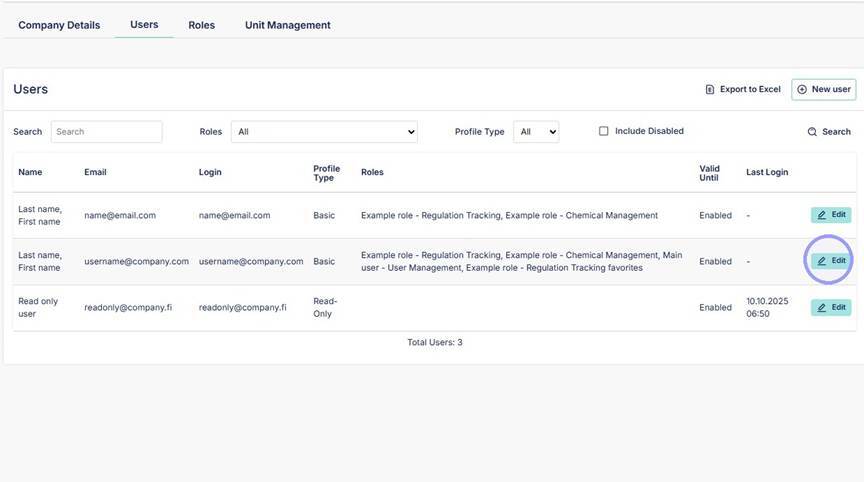
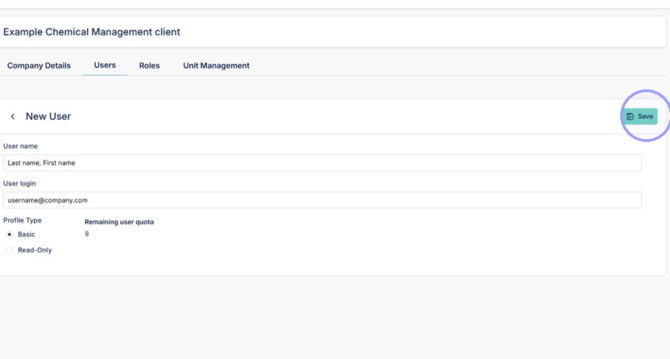
1. Start by clicking "New user" from user management section. Access section by clicking on the company name in the upper corner. In this example "Example Chemical Management client".
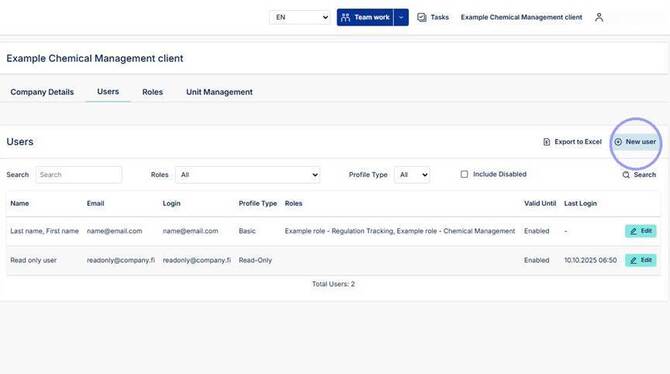
2. In the user name field fill users full name and in the user login set preferred login name. We recommend using users email address for this. Especially if your company is using the Microsoft login option use users email for login field to ensure logging in works correctly with Microsoft.
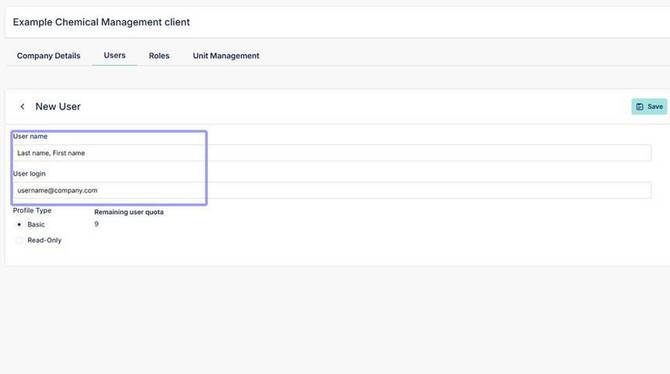
3. Select "Basic" as profile type if user needs editing rights to Ecobio Manager. See available amount of editing right user accounts in the "Remaining user quota".
If there are no available editing rights account, please contact support@ecobiomanager.com to acquire new available accounts.
Select "Read-Only" if user only requires reading rights to Ecobio Manager. There is no limit to available read-only accounts.
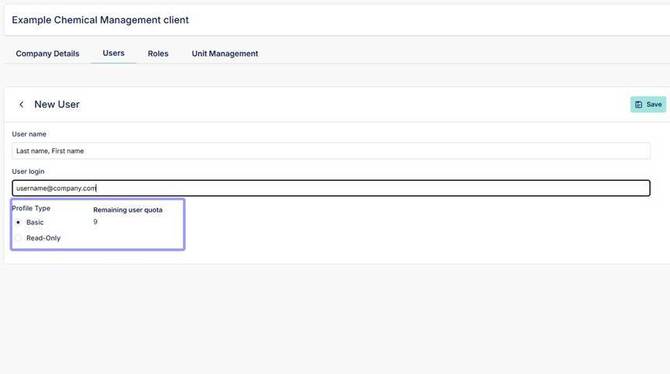
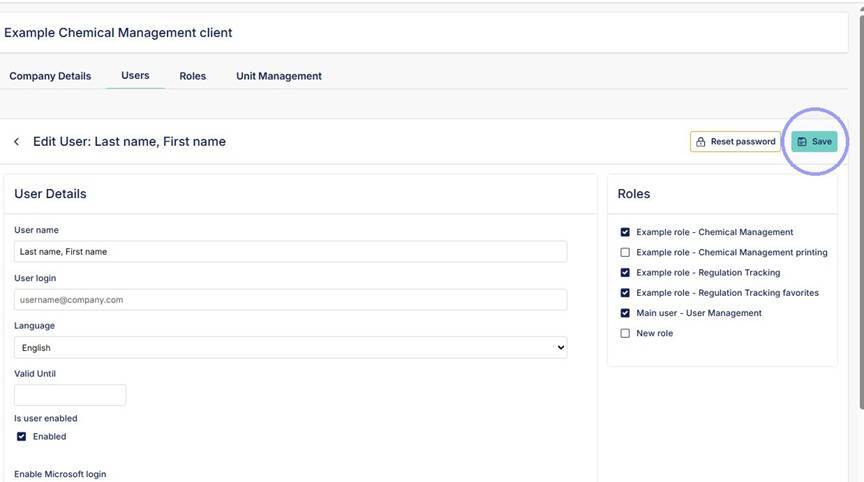
4. Click "Save" to proceed to account details.
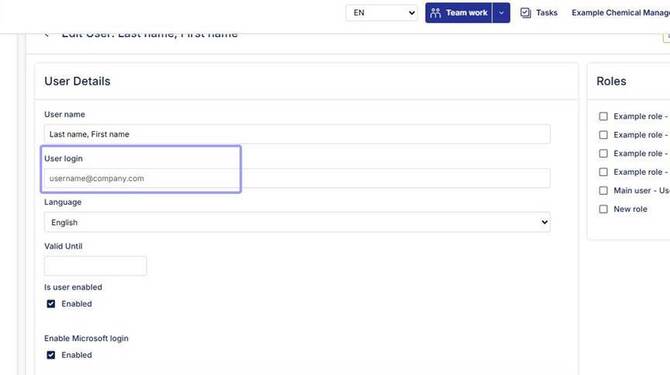
5. From opening view you can edit account information exept for the User login field. If you want to change this, either create new account with new login or contact support@ecobiomanager.com to make changes to user login information.
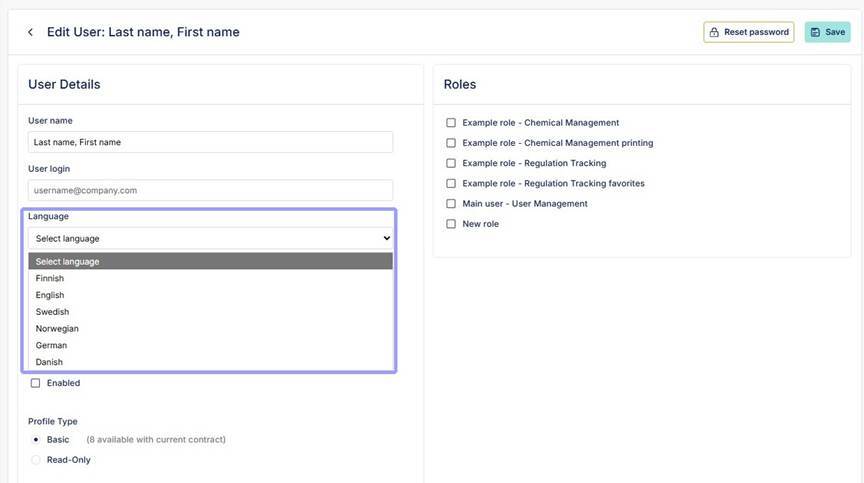
6. Select the contacting language for the account from this dropdown.
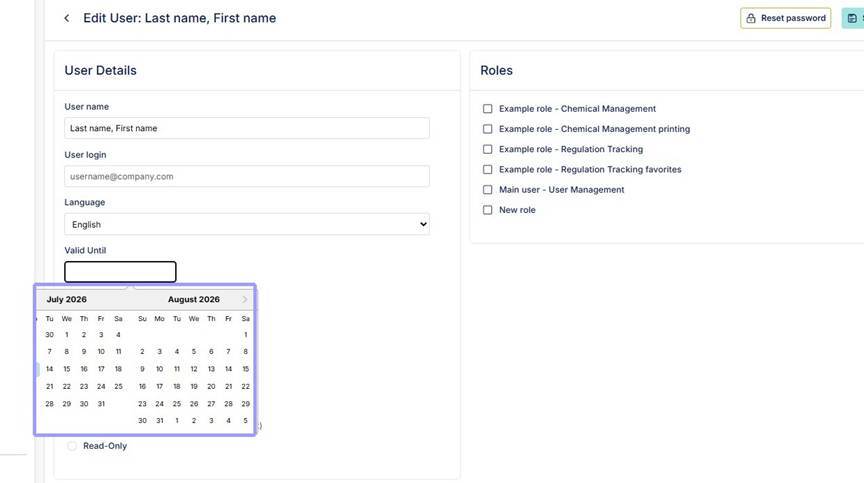
7. If you are creating a temporary account fill in last active date for account from "Valid Until" field. User account will be automatically disabled after this date. Otherwise leave field empty.
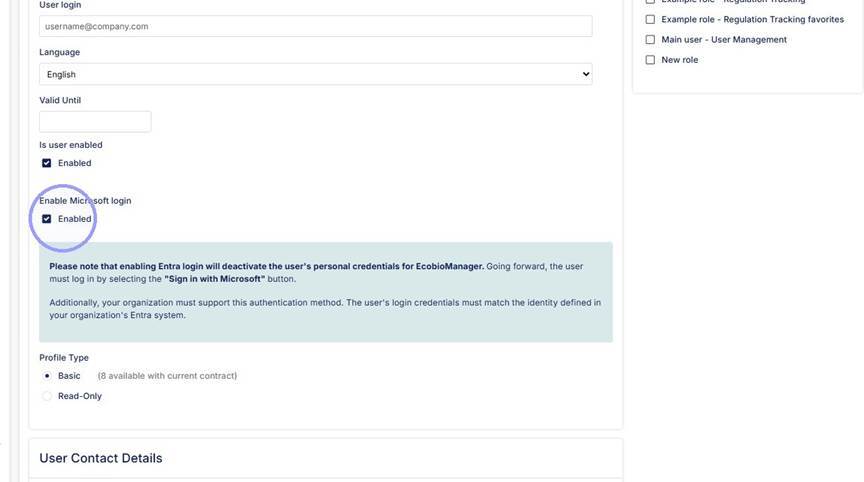
8. If Microsoft login is active for the company, select "Enable Microsoft login". Is Microsoft login is not active, leave this unchecked. Contact support@ecobiomanager.com if you wish to activate Microsoft login for company.
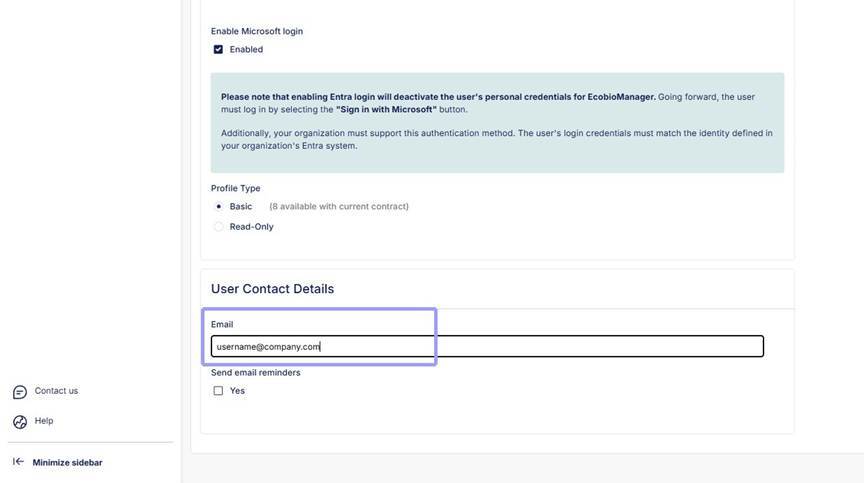
9. Fill in users email address in contact details.
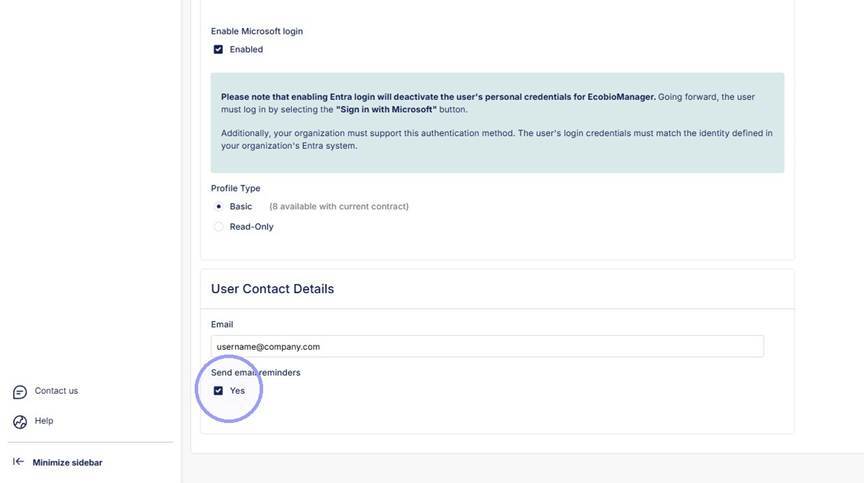
10. Click "Yes" in "Send email remainders" if user will have access to regulation tracking and should receive messages about legislation changes.
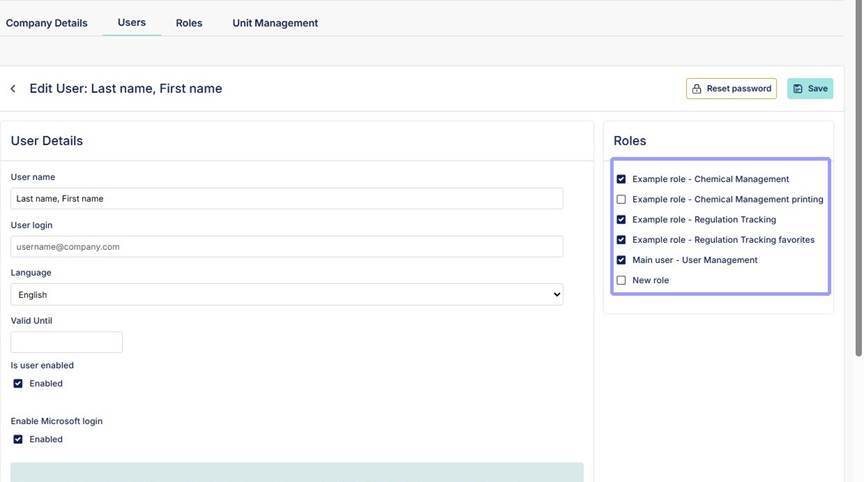
11. See list of roles preset for company. To see more information about roles, see "Roles" section between "Users" and "Unit Management".
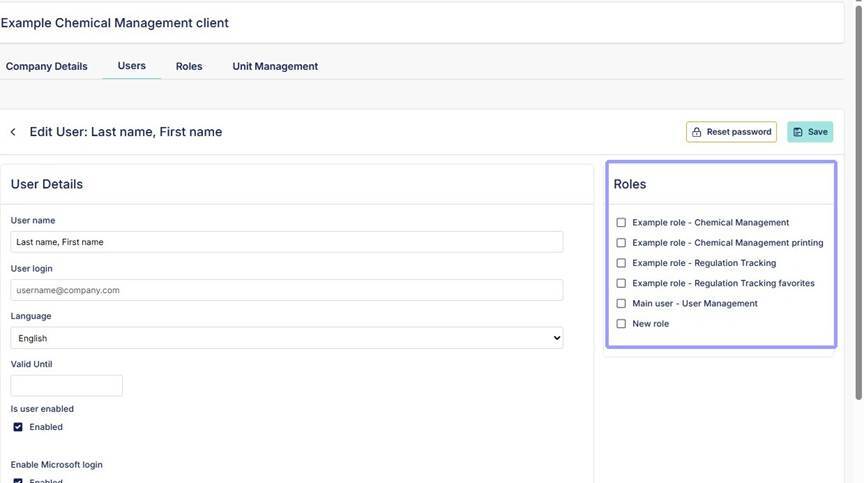
12. Select roles for the account. This user will have access to Chemical Management, and Regulation Tracking plus they will have additional Regulation Tracking favorites feature active. They will also have access to User Management.
13. After details are set, save profile.
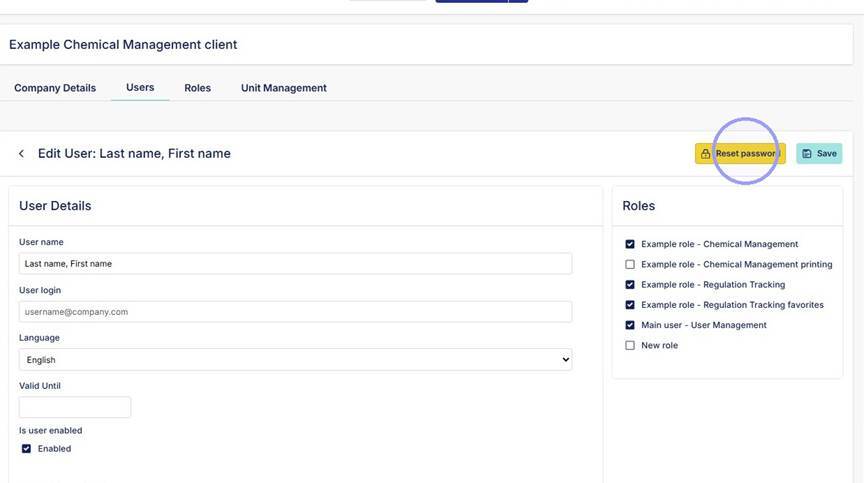
14. Then send password activation message from "Reset password".
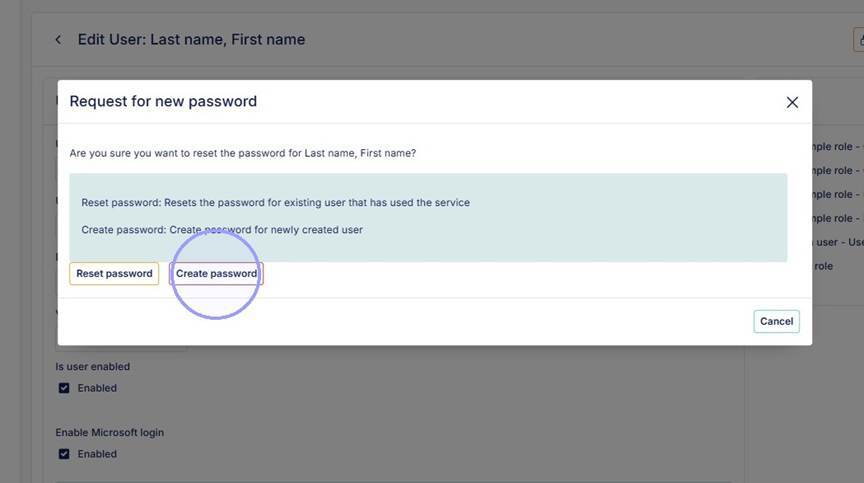
15. Click create password, email will be sent to the address specified in contact details.
16. See new profile in the user list. You can still make edits to account by clicking "Edit" on the right side of the account.